Enable ITC Spend Intelligence in Salesforce
Last updated: December 6, 2025
Step 1: Upgrade to v3
When you get to the bottom of the page and are on step 5 'Reactivate your Data Integration Rules' proceed to the below instructions instead.
Step 2: Refresh HG Settings
- Go to the HG Settings page - open via the plus symbol or in lightning via the 9 square box in the left side
- Click the box Check for HG Permissions
- Click on tab "HG Technology Permissions"
- Click on box "Check HG Permissions"
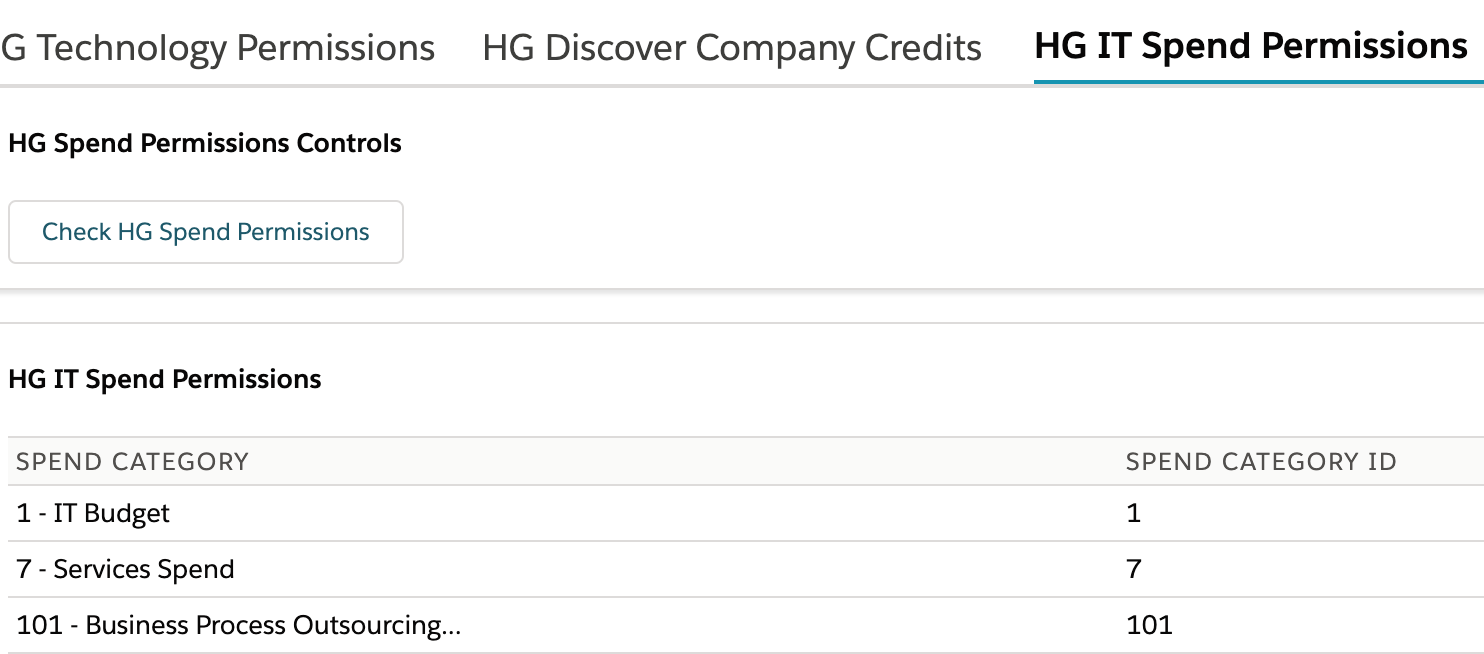
- Click on tab "HG IT Spend Permissions"
- Click on box "Check HG Spend Permissions"
Step 3: Enable Data Integration Rules
The flow of HG's data into Salesforce is controlled by Data Integration Rules. There are six data integration rules in V3:
2) HG Global Entities for Leads
HG for Salesforce does not modify account or lead data and only appends HG Data Technologies records.
There are several rule settings that can be configured:
-
Update all records (recommended)
This allows HG Data to enrich all account records, and activates continuous enrichment -
Bypass triggers
If enabled, will skip triggers for HG Data Technologies when updated. We recommend you leave this unchecked. -
Bypass workflow rules
If enabled, will skip workflow rules for HG Data Technologies when updated. We recommend you leave this unchecked. -
Leave last-modified information unchanged
If enabled, will not update the last-modified date when HG Data Technologies records are updated.
You can also Edit the Field Mapping for HG Data Matching to Leads and Accounts. This will determine what fields are used for matching accounts and leads to HG Data information. For more detail, see Matching to Accounts and Leads.
To Activate HG for Salesforce:
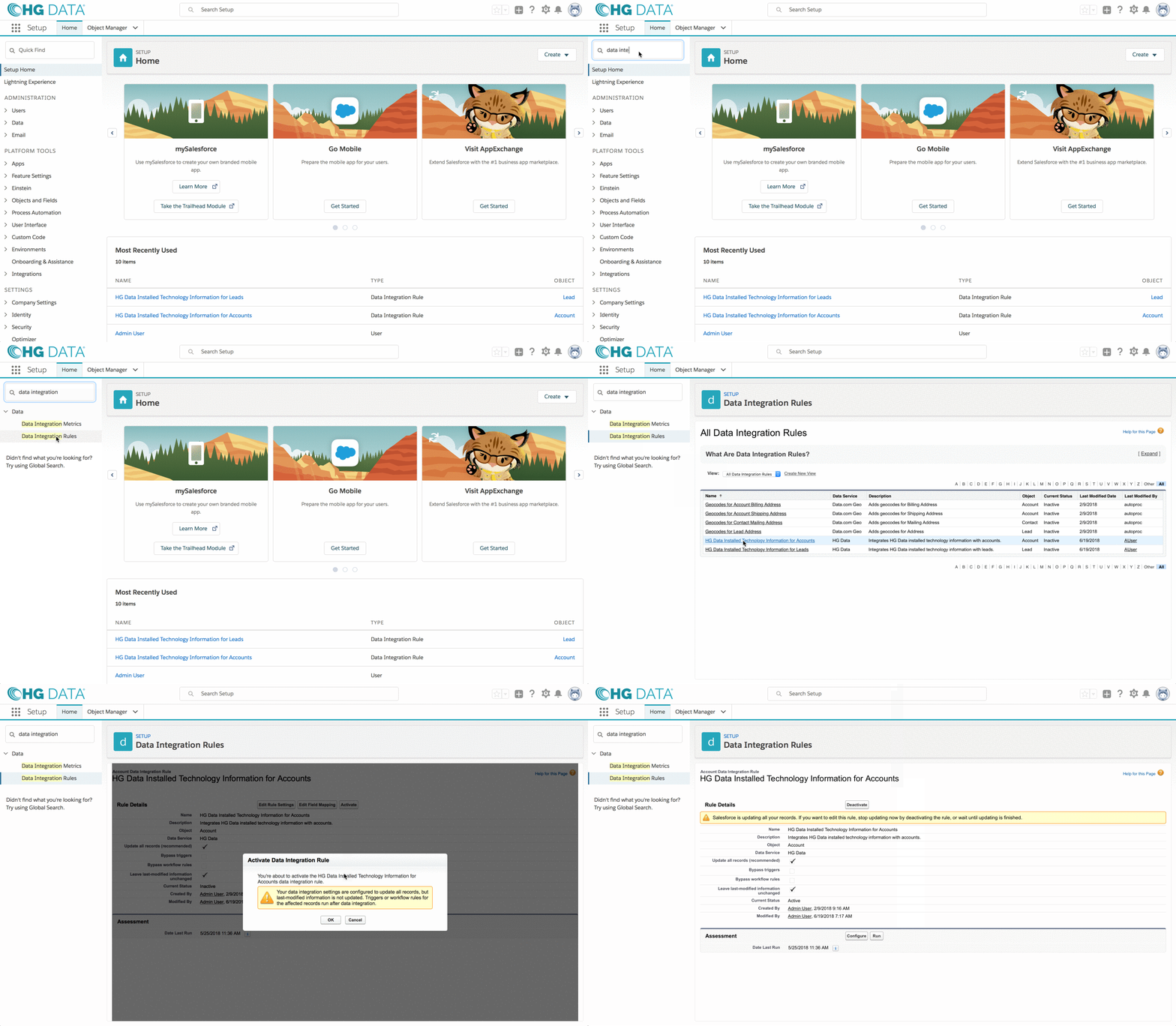
- From Setup, enter Data Integration Rules in the Quick Find box and select.
-
Scroll to each of the below rules open the rule by clicking on its name and click "activate" one at a time.
Determine if you are going to be using “HG Global Entities for Accounts” or “HG Global Entities for Leads” depending on which object you would like to append HG Data to. This process can be repeated for both Accounts and Leads as desired or both at the same time.NOTE: Order is important and you should wait till each finishes before proceeding to the next. Each rule may take several minutes to complete (sometimes up to an hour if you have over 500k leads or accounts).1) HG Global Entities for Accounts
2) HG Global Entities for Leads3) HG IT Spend Integration for Accounts4) HG IT Spend Integration for Leads5) HG Data Installed Technology Information for Accounts6) HG Data Installed Technology Information for Leads
View Larger
If you are installing for the first time, the next step is: Add HG Data to Your Page Layouts