Sync your Product, Spend and Discover Companies Permissions with the HG Settings Page
Last updated: December 6, 2025
The HG Settings page can be used to manually check for updates to your permissions in HG for Salesforce. This can help speed up the initial implementation, or the addition of any new technologies to your entitlements.
To get to HG Insights Settings in the Lightning Experience:
- Click on the App Launcher
- Search for HG
- Click on HG Settings
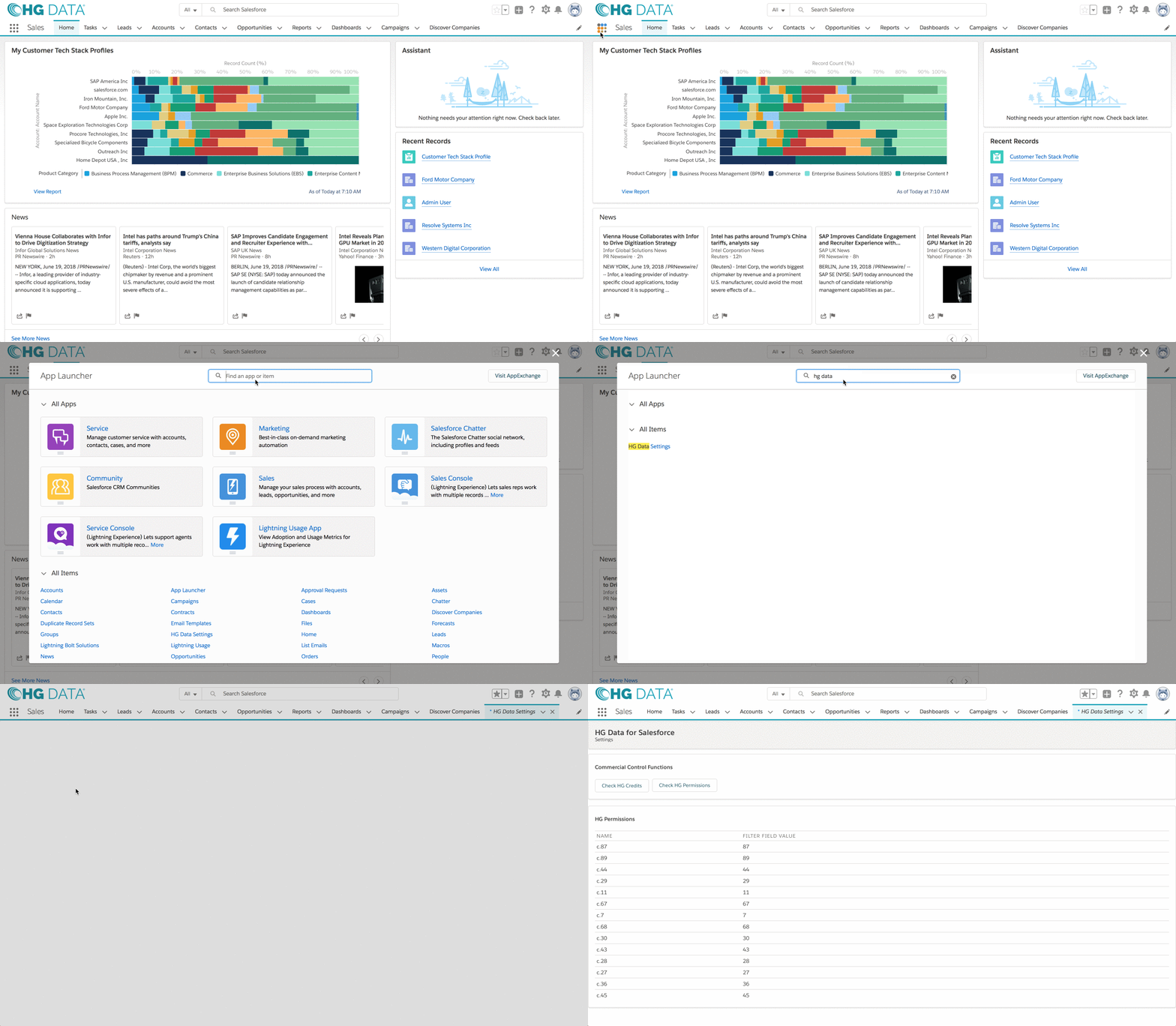
View Larger
To get to HG Insights Settings in the Classic Experience
- Click on the + symbol
- Scroll to HG Settings
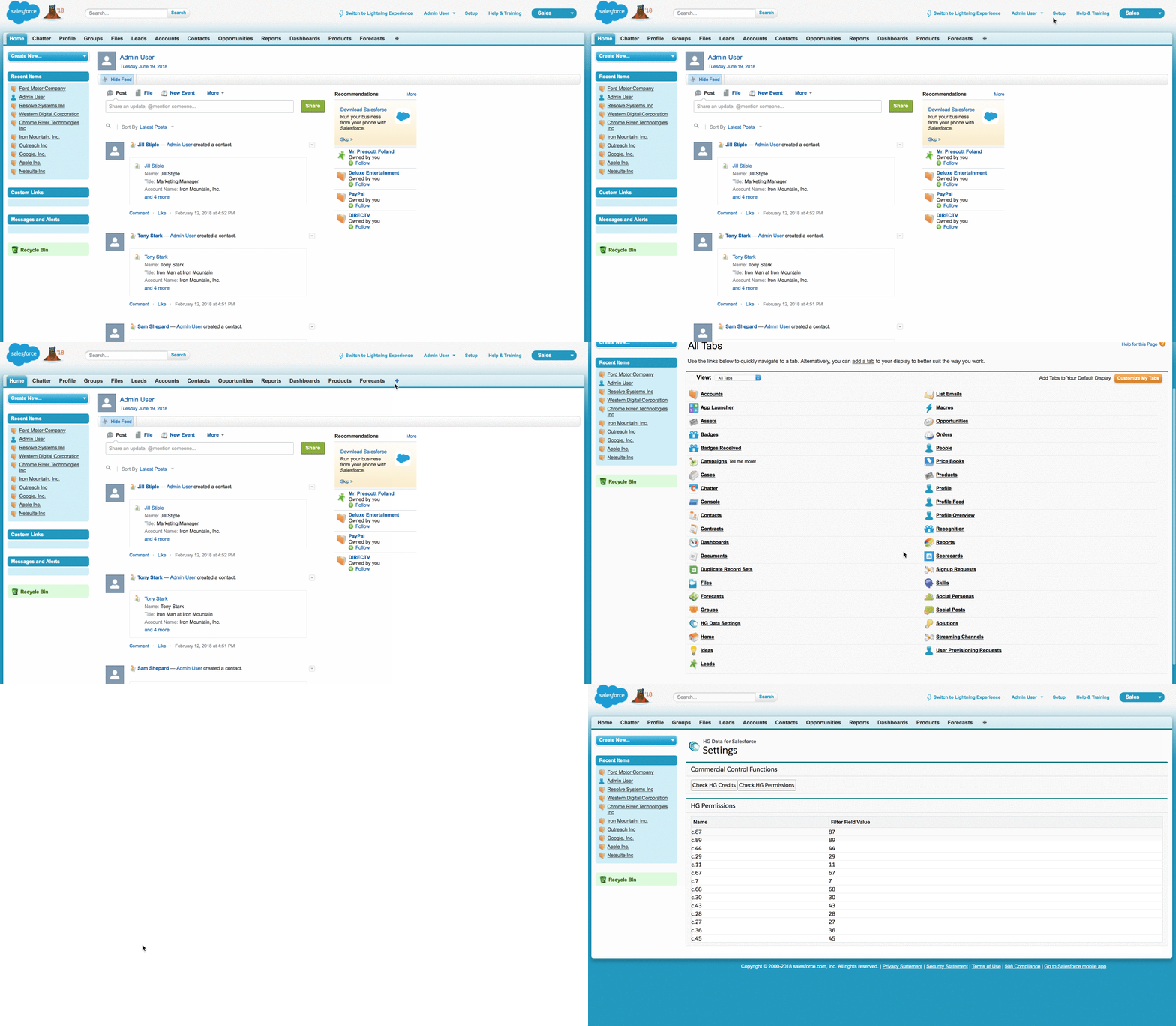
View Larger
Using the HG Insights Setting Page
- Click the Check HG Permissions button to check for any updated technology entitlements.
- Click the Check HG Credits button to check for any updated Discover Companies credit entitlements.
- Activate the HG Trigger Settings within the package using the checkboxes to keep the data up to date, and allow for rematching.

Note: You may need to click Sync Permissions Twice or Refresh the page to ensure the Permission set is properly in sync, Often they are not visible at first without a refresh of the page.
Next Step: Activate your Data Integration Rules