Adding HG Insights to Your Page Layouts
Last updated: December 6, 2025
Visualforce Pages
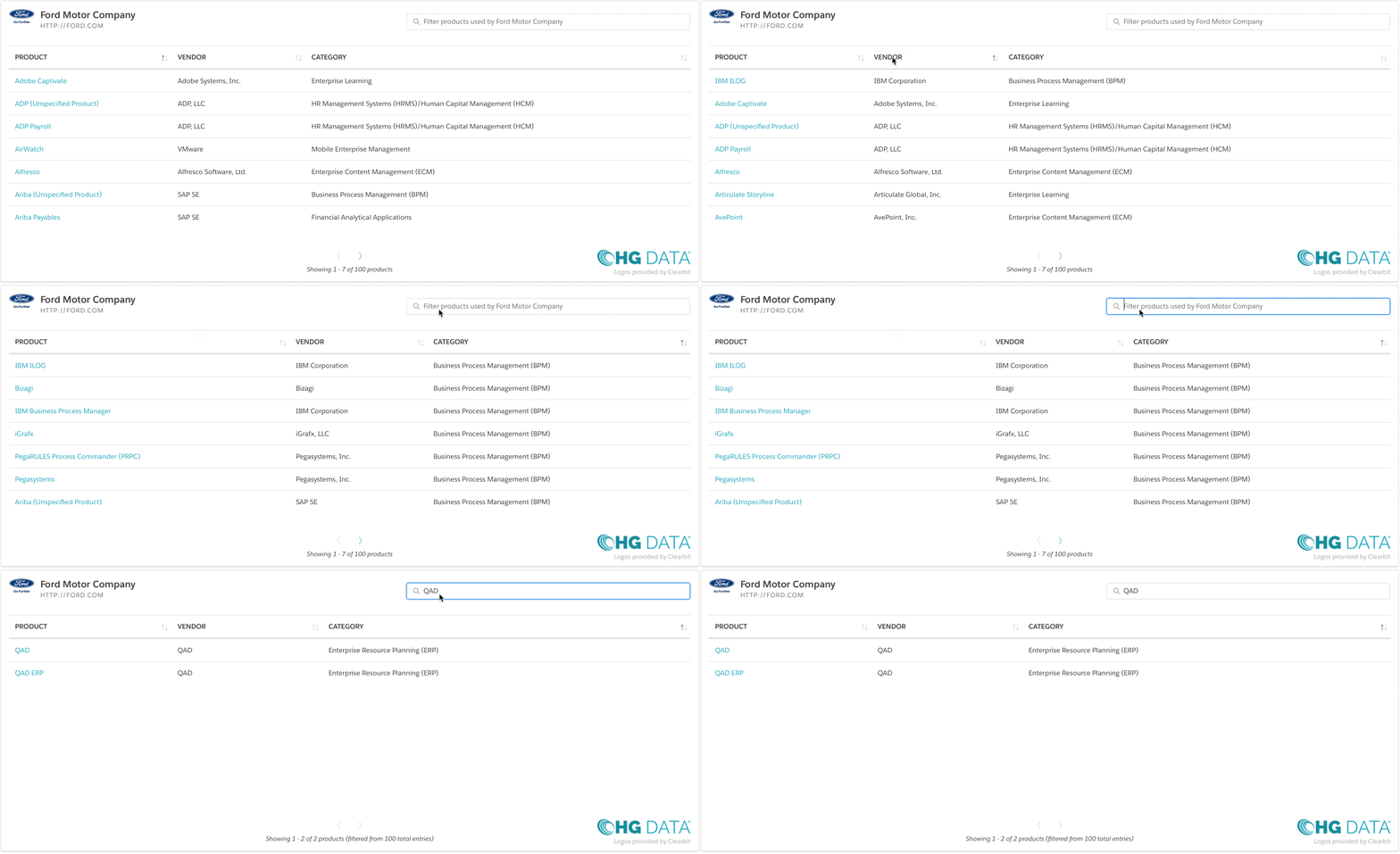
HG Insights for Salesforce's Visualforce pages allow you to search and sort through a company's tech stack and IT Spend - allowing you to quickly identify if a company is using a specific technology and what their forecasted spend is.
These Visualforce Pages are available for the Account, Lead, Contact, and Opportunity records.
Adding the HG Insights Technologies related list to the Account layout:
HG for Salesforce for SFDC includes a custom object called “HG Insights Technology” that will be appended to the Account object in Salesforce CRM. To add this custom object related list to the account page layout:
- From Setup, enter Account in the Quick Find box and select Page Layouts.
- Using Lightning? Navigate to Object Manager > Account > Page Layouts.
- Find the page layout you would like to add the button to and click Edit.
- In the top bar, select Related Lists and then drag and drop the HG Insights Technologies tile onto the layout.
- Click the wrench icon and add the fields you wish to display on the layout and uncheck the box to remove the New button.
Tip: We recommend the following Selected Fields: Id, Product, Vendor Name, Product Category, Product Category Parent, Date Last Verified, and Confidence Score. Sort by Confidence Score (Descending).
- In the top bar, select Visualforce Pages and then drag and drop a new Section onto the Account Layout and name it HG Insights .
- Using Lightning? The Visualforce page is fully responsive and can fit in the sidebar to keep the classic page layout clear of clutter.
- Drag and drop the HG Insights (Account) tile into the newly created section and set the Height (in pixels) to 530.
(You can repeat this on the Contact and Opportunities objects as well.)
- Click Save and repeat for any other account page layouts you would like HG Insights added to.
Adding the HG Insights Technologies for Leads related list to the Lead layout:
HG for Salesforce for SFDC includes a custom object called “HG Insights Technology for Leads” that will be appended to the standard Lead object in Salesforce.com.
- In Classic, from Setup, enter Lead in the Quick Find box and select Page Layouts.
- Using Lightning? Navigate to Object Manager > Lead > Page Layouts.
- Find the page layout you would like to add the button to and click Edit.
- In the top bar, select Related Lists and then drag and drop the HG Insights Technologies tile onto the layout.
- Click the wrench icon and add the fields you wish to display on the layout and uncheck the box to remove the New button.
Tip: We recommend the following Selected Fields: Id, Product, Vendor Name, Product Category, Product Category Parent, Date Last Verified, and Confidence Score. Sort by Confidence Score (Descending).
- In the top bar, select Visualforce Pages and then drag and drop and Drop a new Section onto the Account Layout and name it HG Insights.
- Using Lightning? The Visualforce page is fully responsive and can fit in the sidebar to keep the classic page layout clear of clutter.
- Drag and drop the HG Insights (Lead) tile into the newly created section and set the Height (in pixels) to 530.
(You can repeat this on the Contact and Opportunities objects as well.)
- Click Save and repeat for any account page layouts you would like the data added to.
You have now completed the setup of HG for Salesforce!
Want to start using Discover Companies to import WhiteSpace Accounts?
Be sure to Setup Lighting Data Purchase Assignments.