Salesforce Whitespace
Last updated: December 5, 2025
Salesforce Whitespace allows you to leverage the companies that your Salesforce Connector integration has already matched in your Production organization.
After you create a list in Opportunity Generator, HG will use this list of known matched companies to compare and deliver a collection of new companies to help build your pipeline.
This article covers:
Getting Started
In order to use this feature you must have a connected Production Salesforce org active on your account. Salesforce Whitespace will automatically detect and use our matched companies for all processing.
Salesforce Whitespace is available in Opportunity Generator for licenses both Read Only and Export Platform access.
If you have a Read Only license it will look like this:

And if you have an Export license it will look like this:
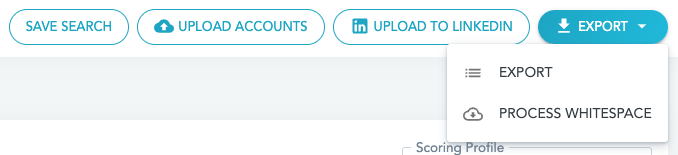
Creating the Whitespace Export
After you finish building your Opportunity Generator list, you can start the Whitespace processing.
When you click Process Whitespace we'll show you a dialog box with some additional information.
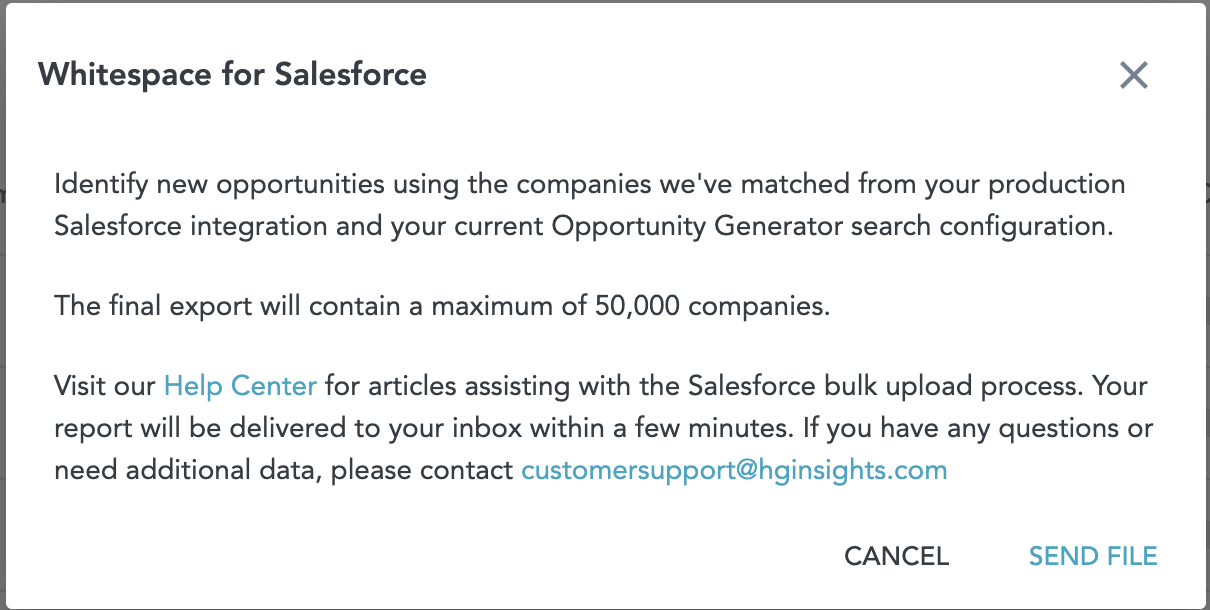
During processing, we'll remove any duplicate URLs that might appear.
The final export will not exceed 50,000 records.
When processing is completed you'll receive an email with a link to download your CSV. We'll also email you if we detect no new companies or encounter an error during this process. This process typically takes a few minutes - if you're waiting hours for an email please contact us.
Reviewing the CSV
The final CSV export will include the Company Name, URL, and location information to aid with Salesforce upload.

We recommend reviewing this CSV output for quality, and to ensure all proposed Whitespace accounts are accurate. At this point you can also append any required data points needed to create an Account in your Salesforce.
Tips for Special Characters in Excel
The file we provide is UTF-8 and is set up to handle any special characters that might be required. When you open directly in Excel, sometimes special characters can break resulting in a series of symbols.
To get around this issue and properly review your file, we recommend opening as an external data source. You can do this via Data > Import External Data > Import Data/Import From Text and choosing Unicode (UTF-8).
If you make any changes, please make sure your new file is saved as UTF-8 as well.
Account Upload
When ready, you can user Salesforce tools such as the Bulk Data Loader or Data Import Wizard to insert the new Accounts and map the required fields.
When uploading to Salesforce you must select (Unicode) UTF-8 to ensure special characters are handled appropriately.
After the new Accounts are uploaded, your Salesforce Connector integration will detect the change and will match and enrich during the nightly sync. If you want it sooner, you can also click Sync Salesforce on your integration in the HG Platform.