Running a Batch Job to Populate Custom Fields
Last updated: December 6, 2025
After you create a trigger (detailed in Activating Triggers Included in the Package - Routing Data to a Custom Field) the trigger will only work on newly updated records.
To populate for all existing records, you'll need to run a batch job.
Please note: this will only work on records that have an HGId populated.
To run the batch job, you'll need to run the following code in the Developer Console. If you're looking to update both Accounts and Leads, you'll need to run this separately - once for Accounts and then once for Leads.
This is the code:
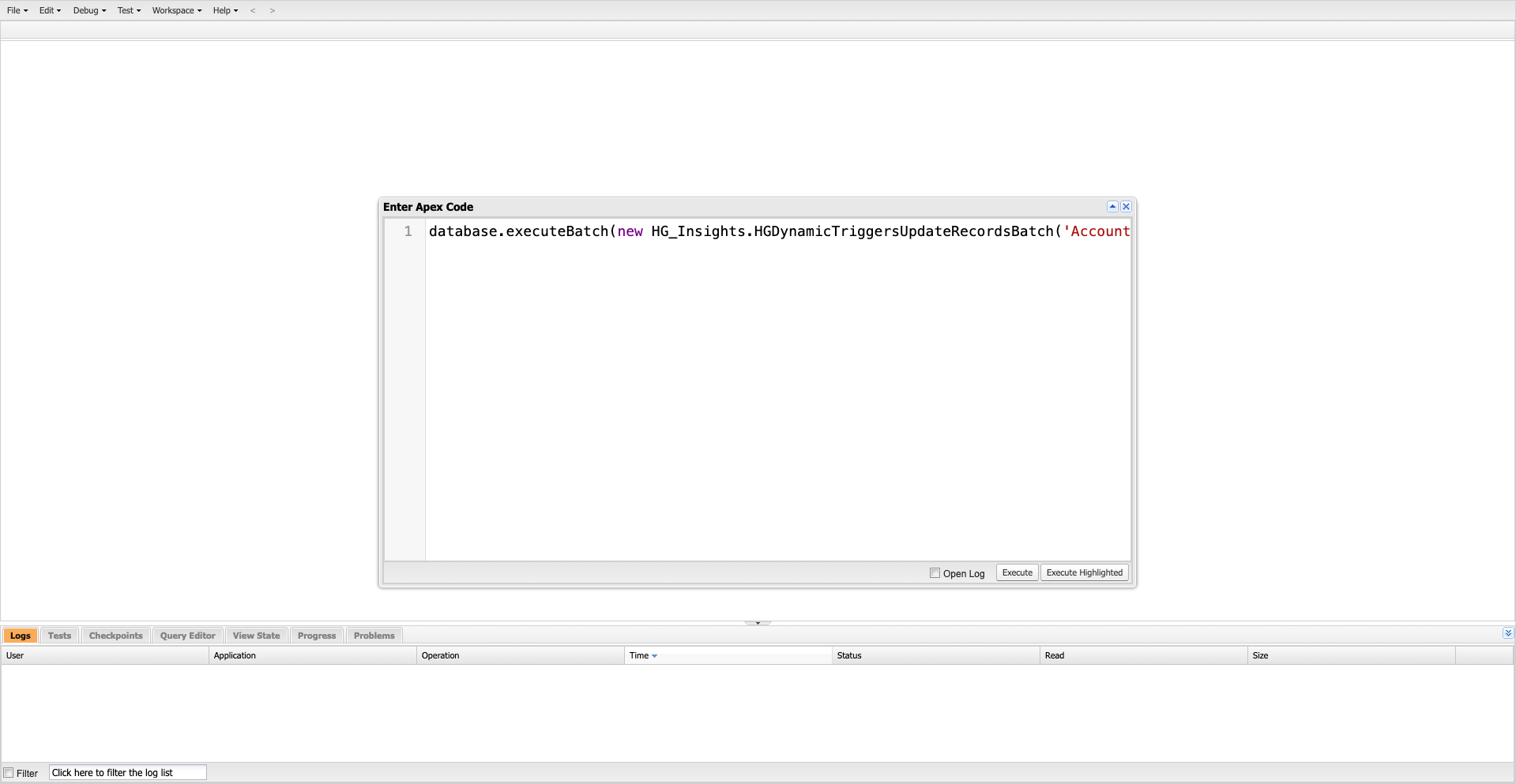
database.executeBatch(new HG_Insights.HGDynamicTriggersUpdateRecordsBatch('Account'));
database.executeBatch(new HG_Insights.HGDynamicTriggersUpdateRecordsBatch('Lead'));
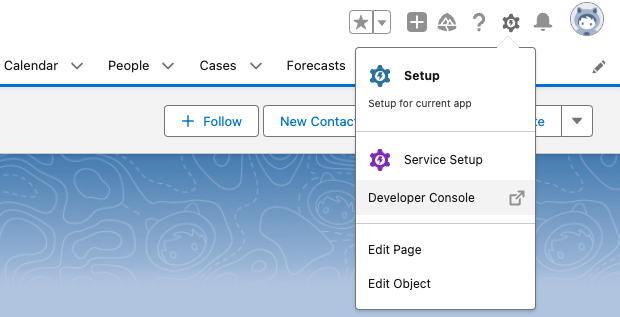
1. After setting up your trigger, open the Developer Console.
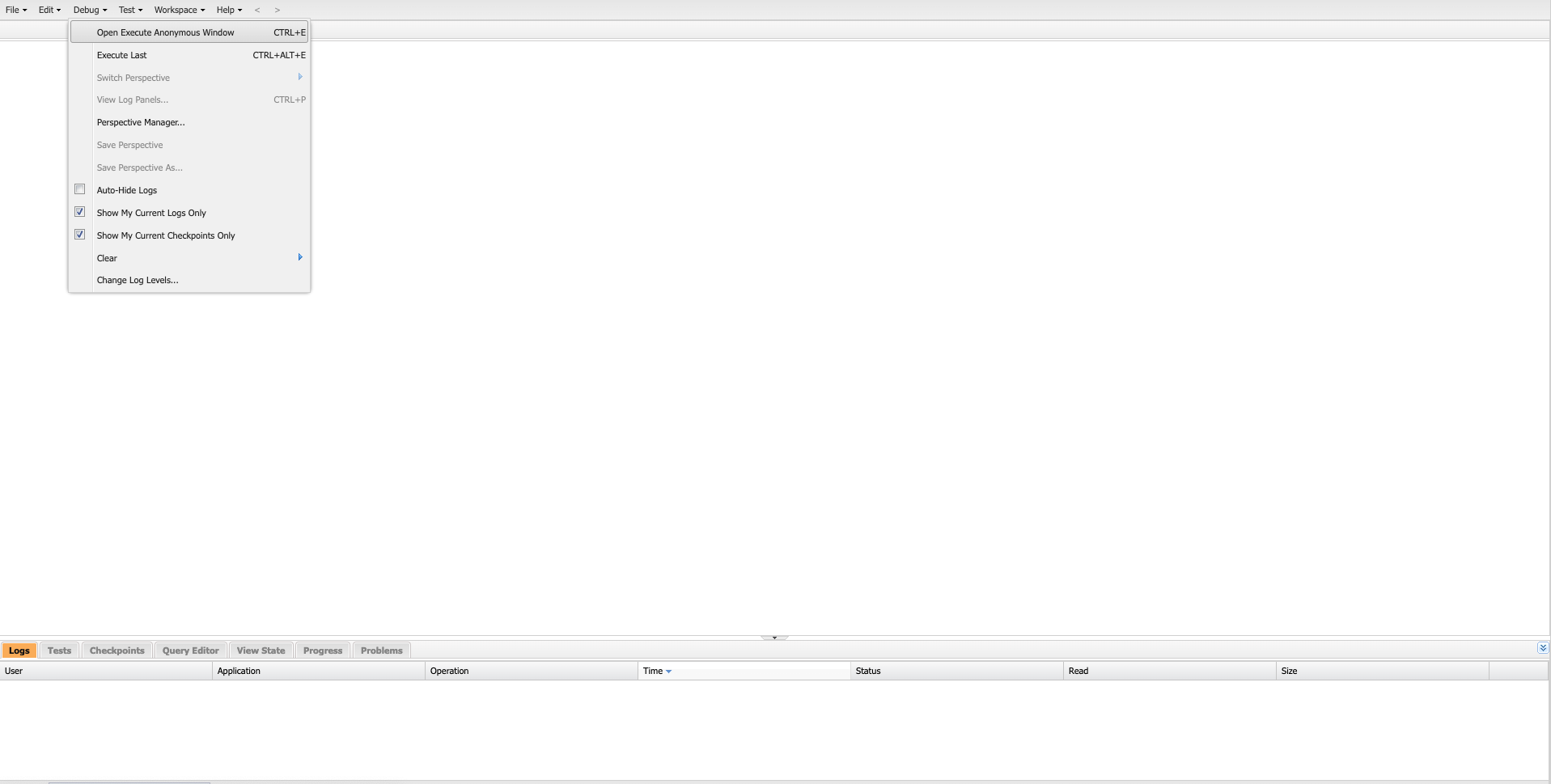
2. In the Developer Console, go to the Debug tab and select Open Execute Anonymous Window:
3. Enter the APEX code provided above and click Execute:
Here's an example of the change seen after running the batch job. On existing accounts you should see your target field go from this:

To something like this:
