Installing the HG Insights Managed Package
Last updated: December 5, 2025
Installing the managed package
For now, you will be provided a link to install the managed package. This link will come from our Product team or your Customer Success Manager.
Paste this link into your browser. If you're installing the package in a Production environment, please make sure the link begins with login.salesforce.com. If you're installing the package in a Sandbox environment, please make sure the link begins with test.salesforce.com.
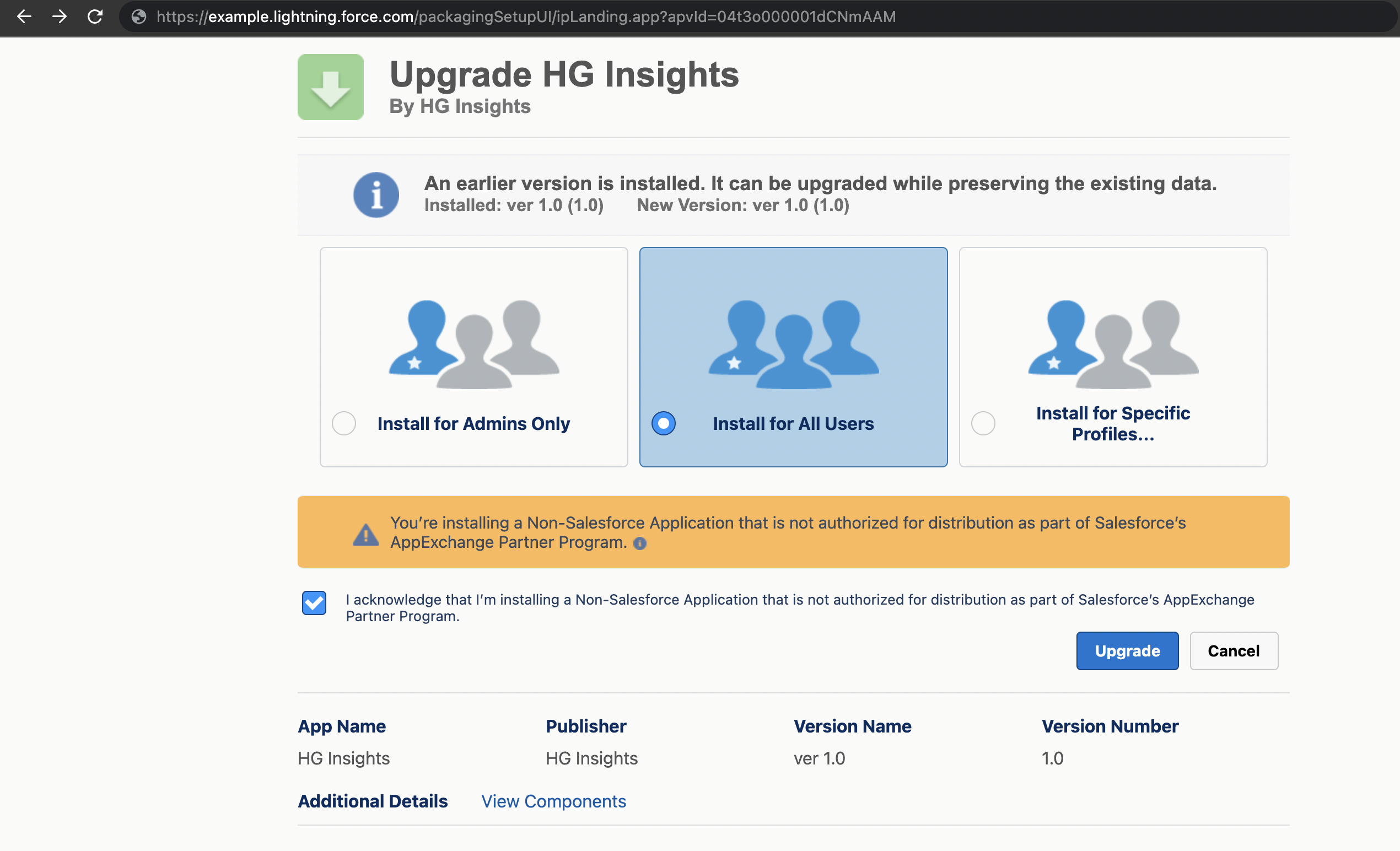
Once you log in with your credentials, you will then be prompted with the below screen where you can see all details about the application you are going to install. This includes the name of the package, version name and number, and components of the package.
To install the package, select Install for All Users and then Install.
You will then need to approve permissions.hgdata.com to have access to your organization and then press Continue.
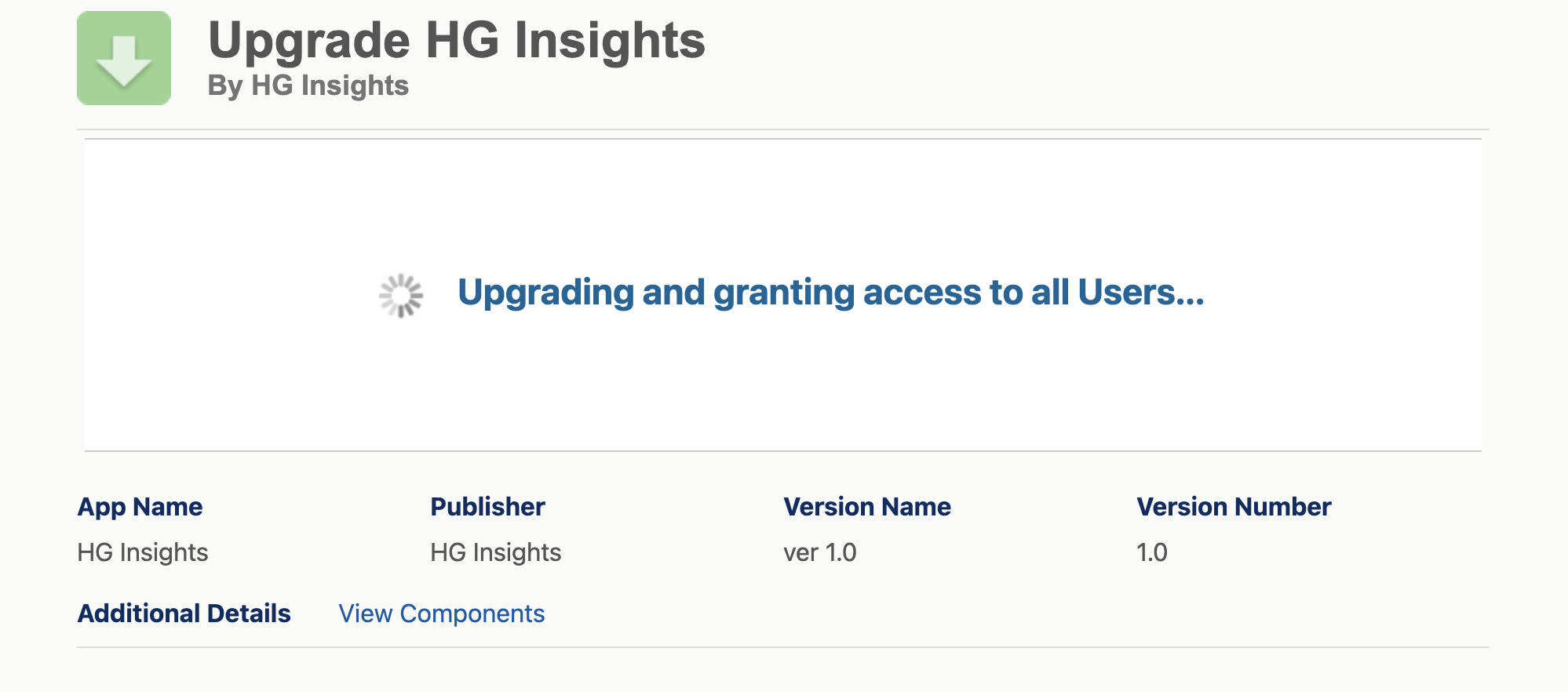
Please wait on this page while the integration is installing. If the installation is taking longer than expected, the message will be displayed on this screen. Press Done and wait for the confirmation email that the package has been installed.
Viewing the InstalledHG Package
After the installation you will be able to see the newly installed package in Setup → Apps → Packaging → Installed Packages.
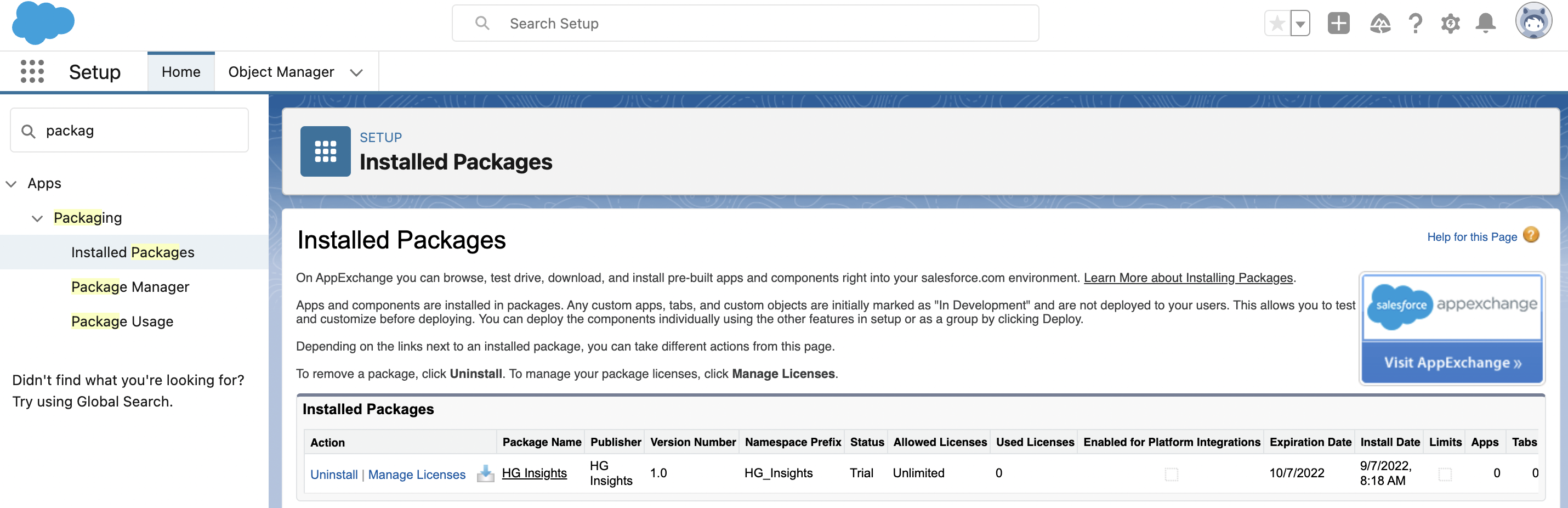
For more details on the package you can click the name to view the package detail page. This will include information like how many apps/tabs/objects were installed, components and dependencies.
Viewing the HG Objects
In the Object Manager you can see the new HG components installed. These objects are:
- HG Technographic (HG_Insights__HGTechnographic__c)
- HG Firmographic (HG_Insights__HGFirmographic__c)
- HG IT Spend* (HG_Insights__HGITSpend__c)
*Please note - HG IT Spend is a placeholder object during development. This data is not yet available.
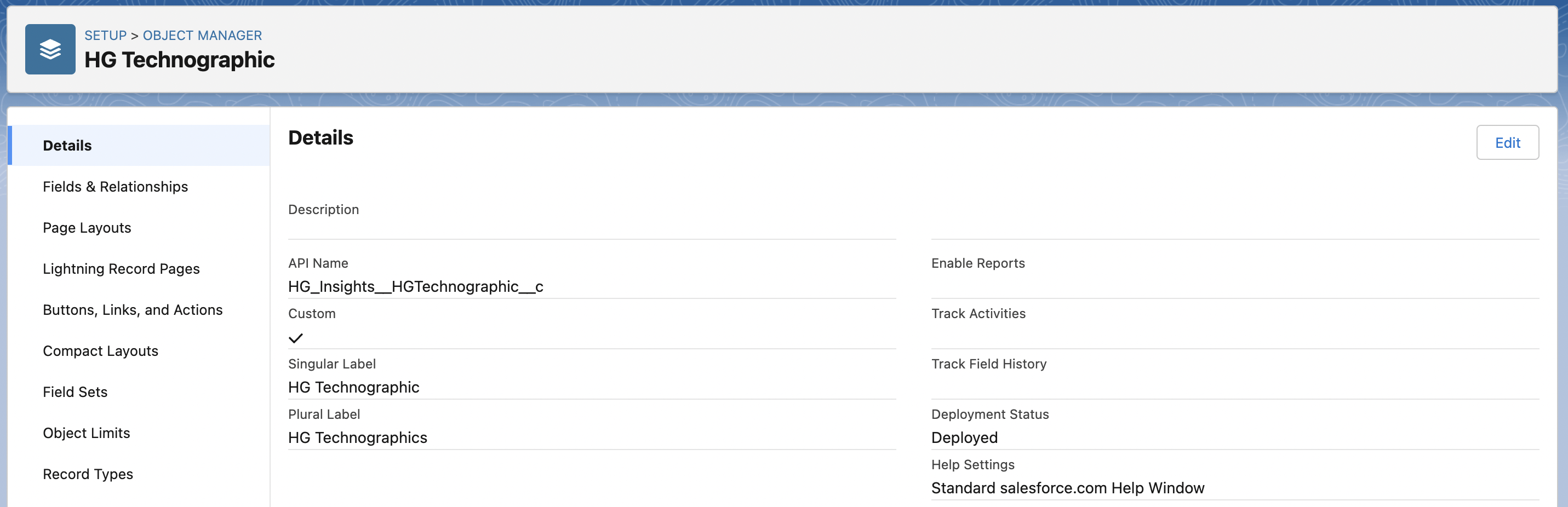
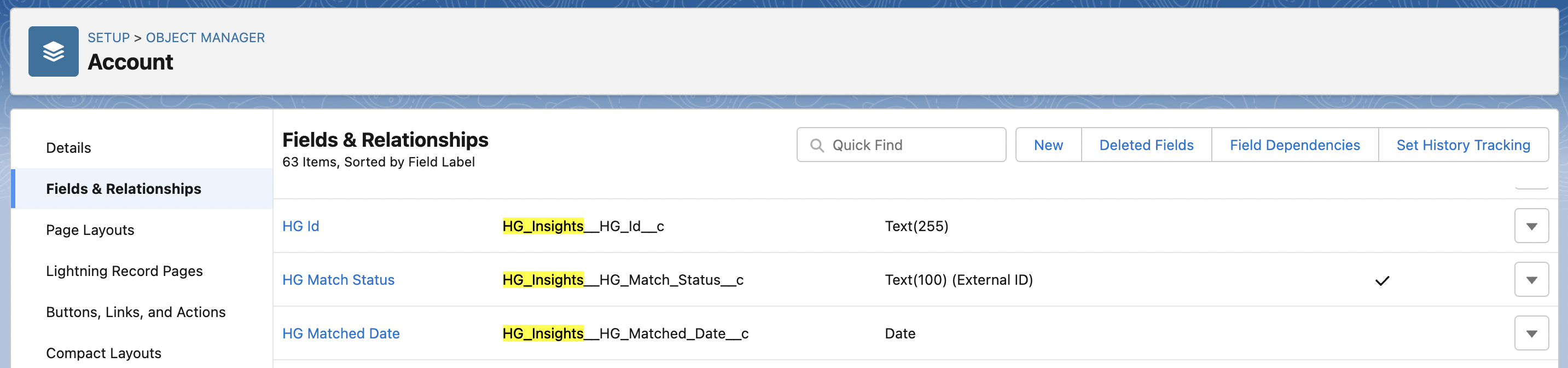
If you select the Account or Lead object, you will see the fields that were installed via the managed package between the other fields of the object and these will be prefixed with the HG_Insights__ namespace.
Connecting Salesforce with HG Platform App
After the package is installed, before the HG Platform can start enriching data into the Salesforce organization, it needs to establish a connection between the two apps.
For this purpose, there is a connected application that is part of the package. To activate this, configure your integration in HG Platform.
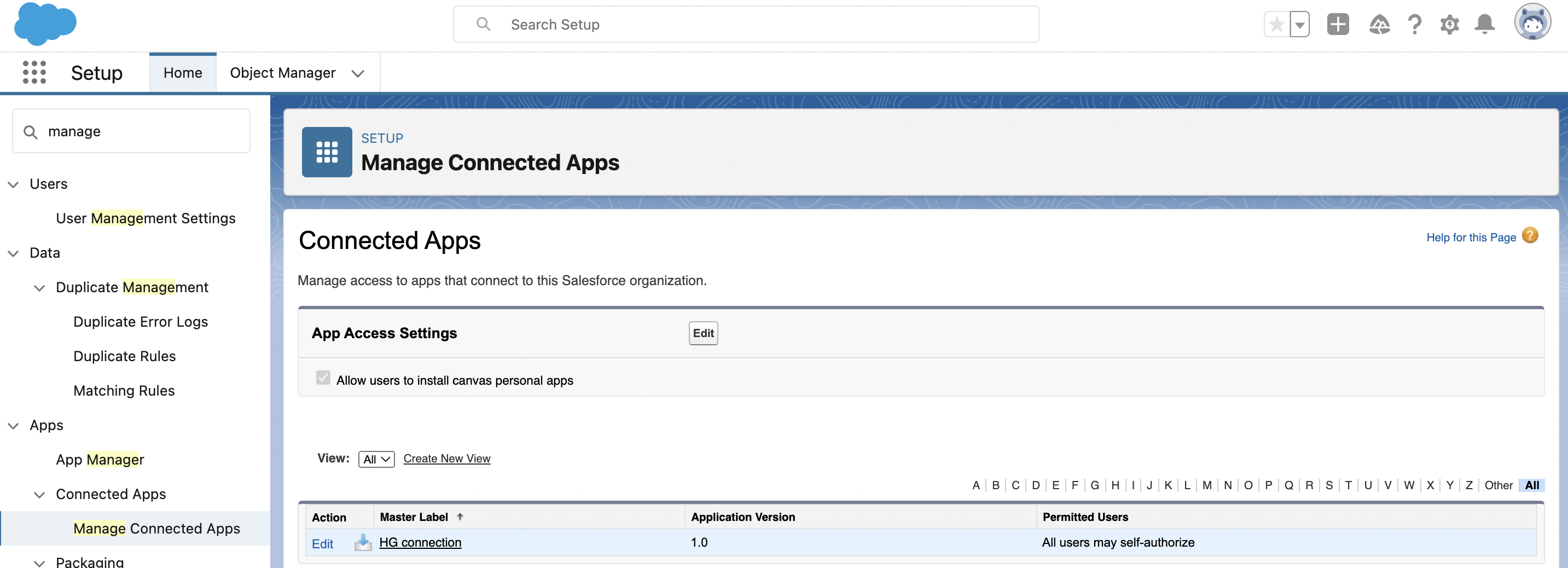
To see the details of this connected app go to Setup → Apps → App Manager → Manage Connected Apps → HG connection