Configuring the Enrichment Filter
Last updated: December 6, 2025
✨This feature requires package version 1.14 or later ✨
Before version 1.14, the integration operated on an 'all or nothing' model for data enrichment. To help support different consumption models, and organizations who simply want to control the volume of data, we've added an optional enrichment filter.
When you first connect your integration HG will match all the Account and/or Lead records in your organization. This happens before anything is enriched with data.
To continue enriching every Account and/or Lead in your organization simply leave the Enrichment Filter sent to None and continue with set up.
To set up an Enrichment Filter, you can access configuration either through:
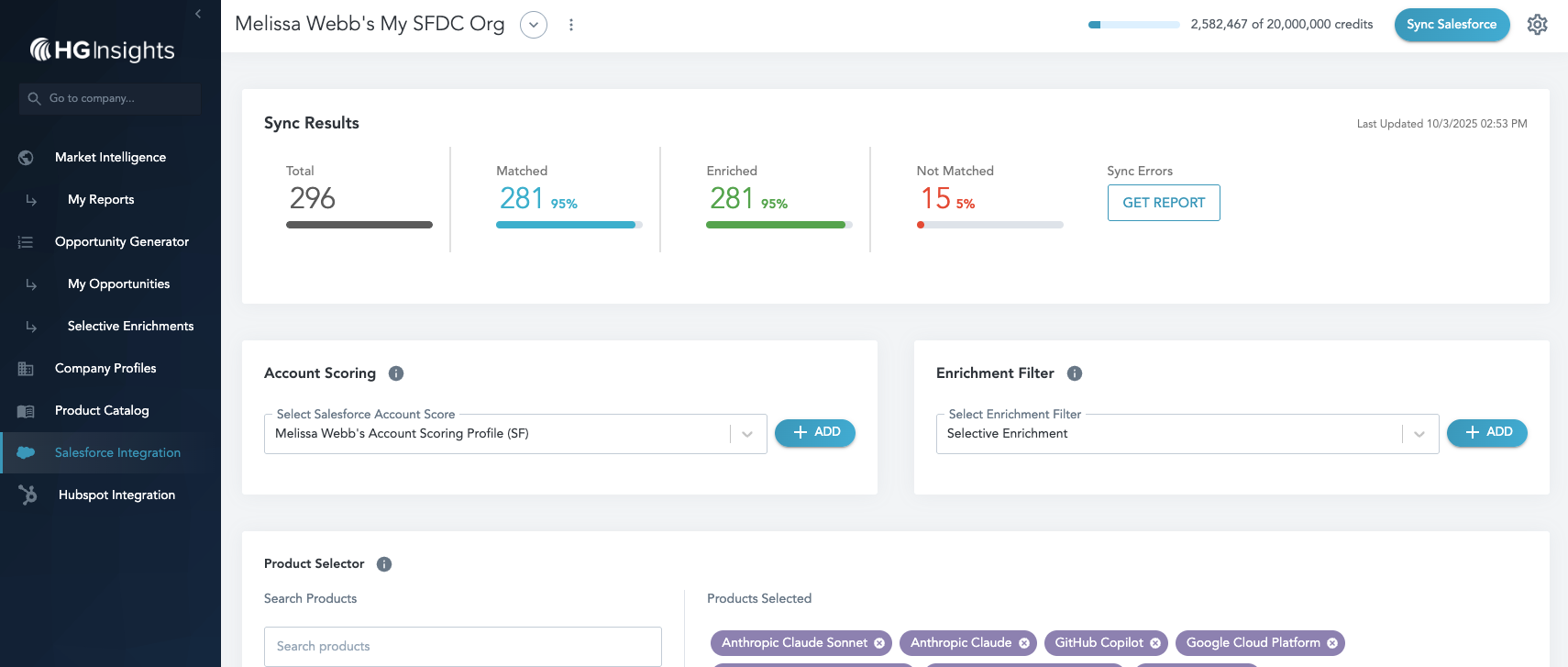
- Selecting the + ADD button on the Enrichment Filter component in Salesforce Integration tab
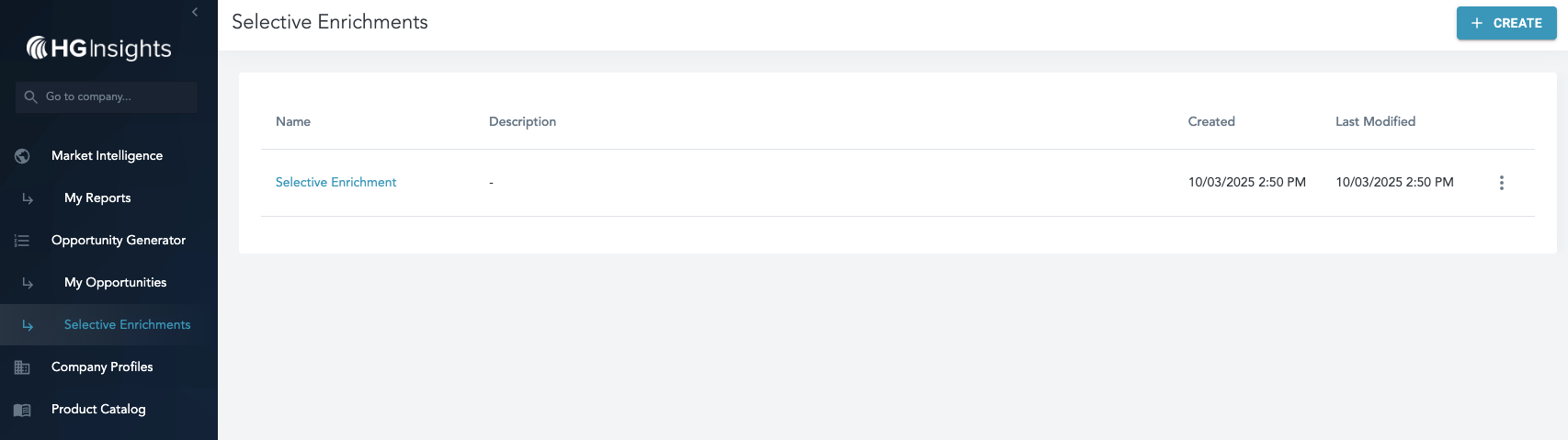
- Selecting Selective Enrichments in the left navigation.
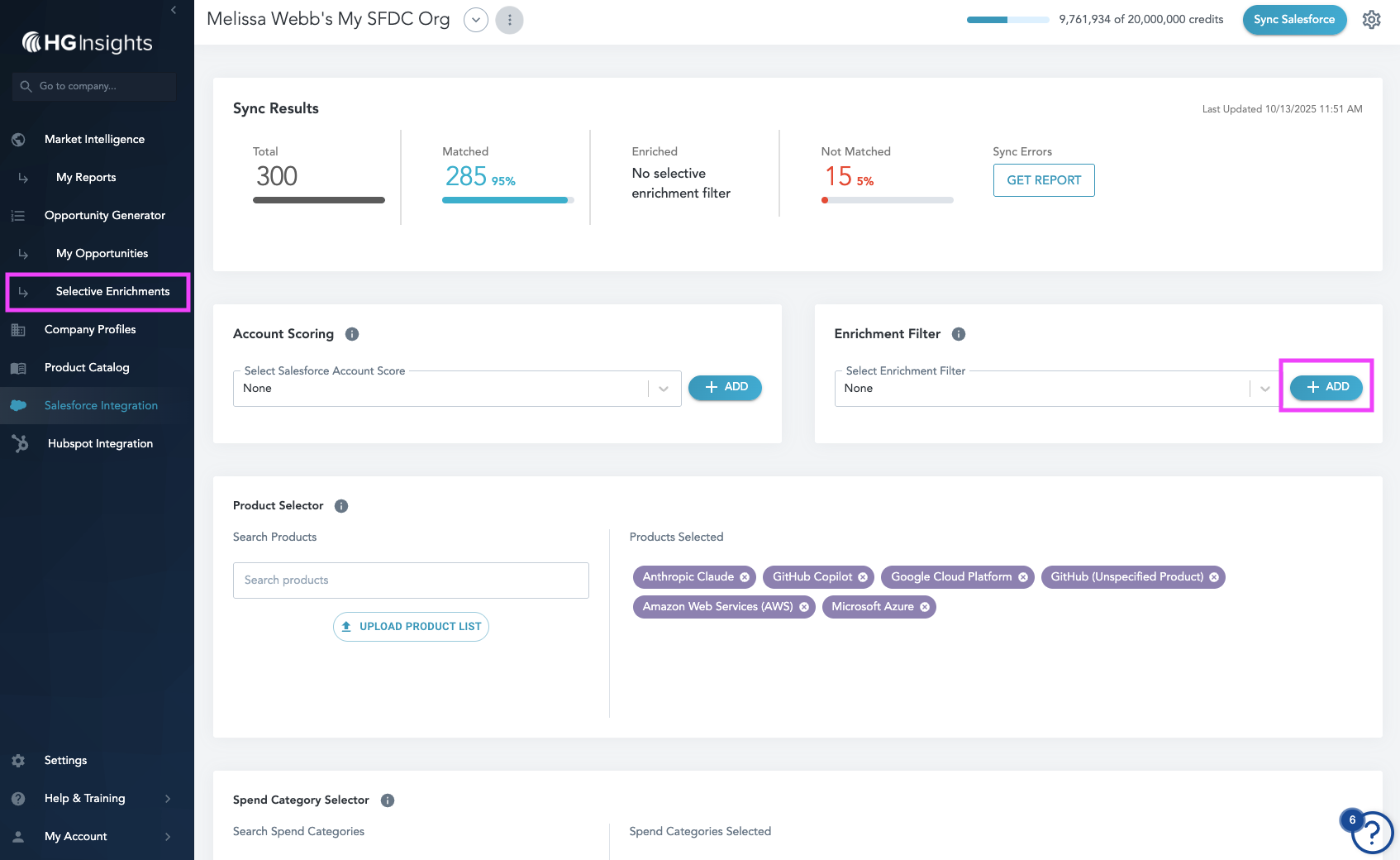
On a New Selective Enrichment you will be able to set filters that control which of these matched records will be enriched with data.
This can be based on HG's more general filter set, or you can upload a list of your Accounts. If you choose to upload a list, we highly recommend leveraging HG ID to ensure a more targeted filter set.
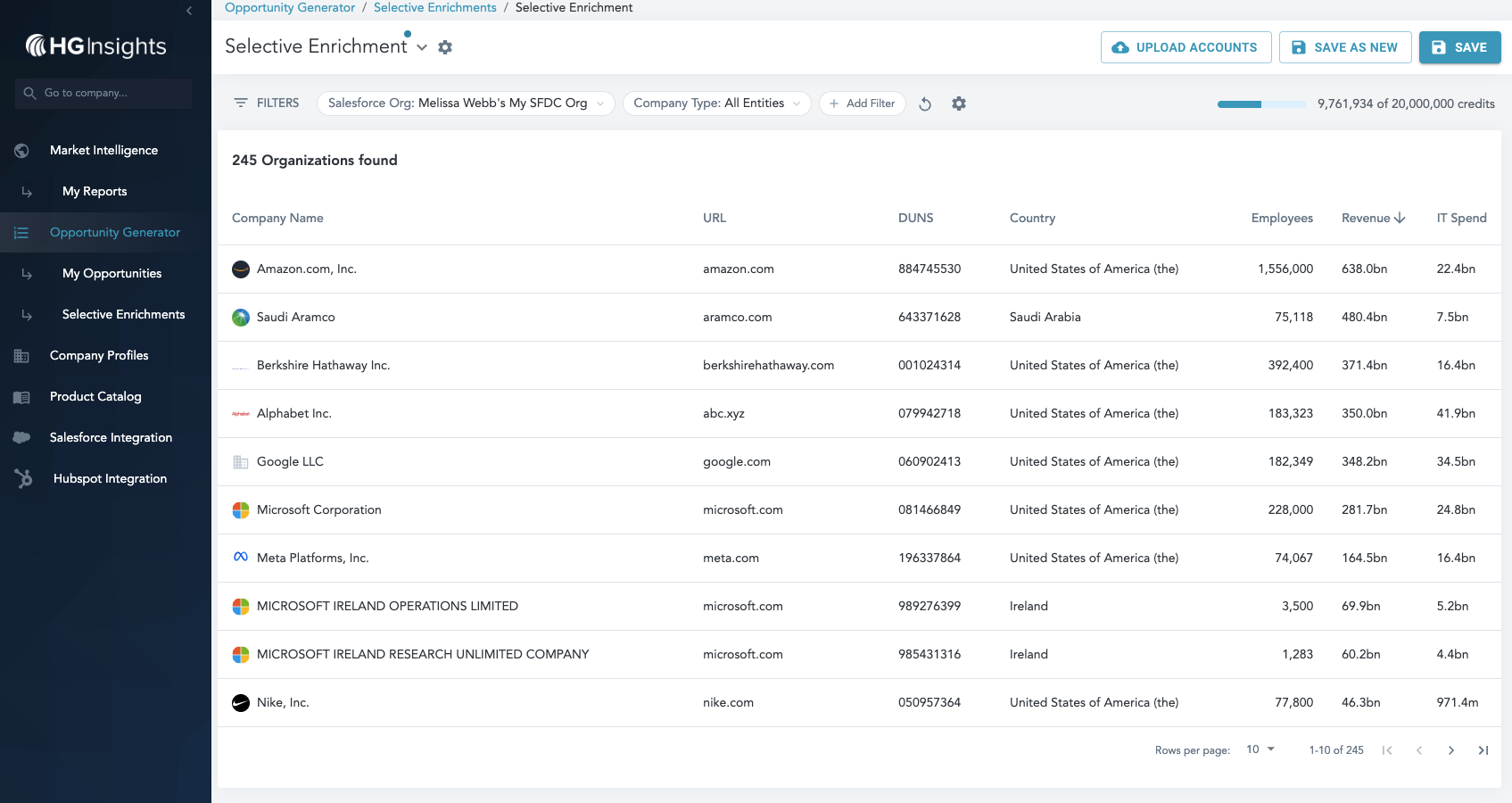
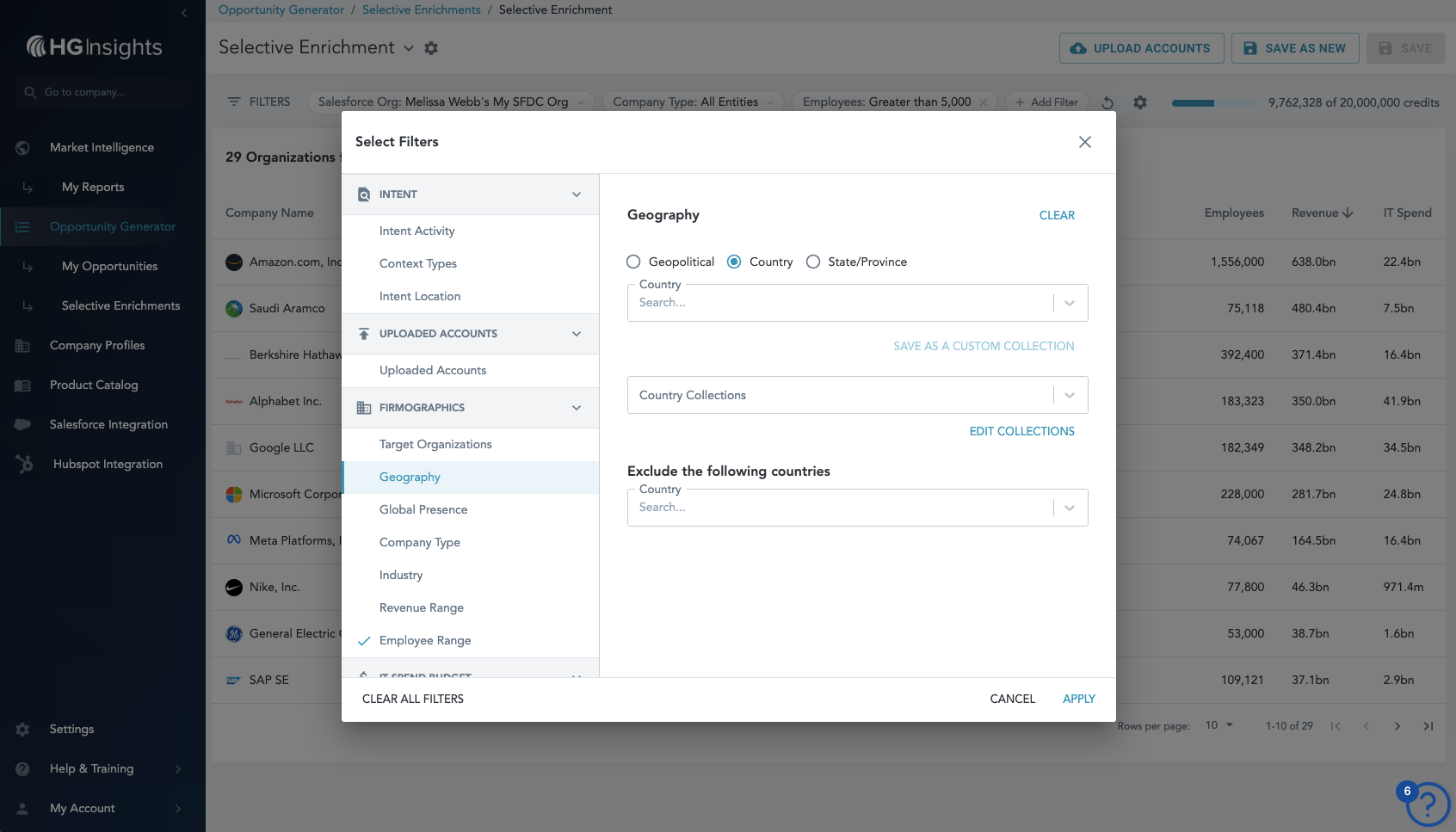
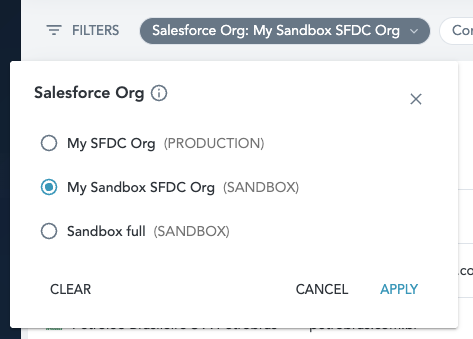
While setting up your filters, you can compare results against any matched organization connected - this happens in the Salesforce Org filter. This allows you to get a real idea of the number of companies we match in your organization, compared to the number that match your filter set.
Please note: You may see differences when comparing this to the Sync Results tab on the Salesforce integration page - that is because of duplicate matches that may appear across CRM records.
When you're filters are selected click Save in the top right.
Saved Enrichment Filters can be found in the Selective Enrichments tab.
Back on the Salesforce Integration tab, saved Enrichment Filters will also be available for selection in the dropdown. Only one can be selected at a time.
When you select a filter, you'll see the count match your Matched values - this will update after your first sync.

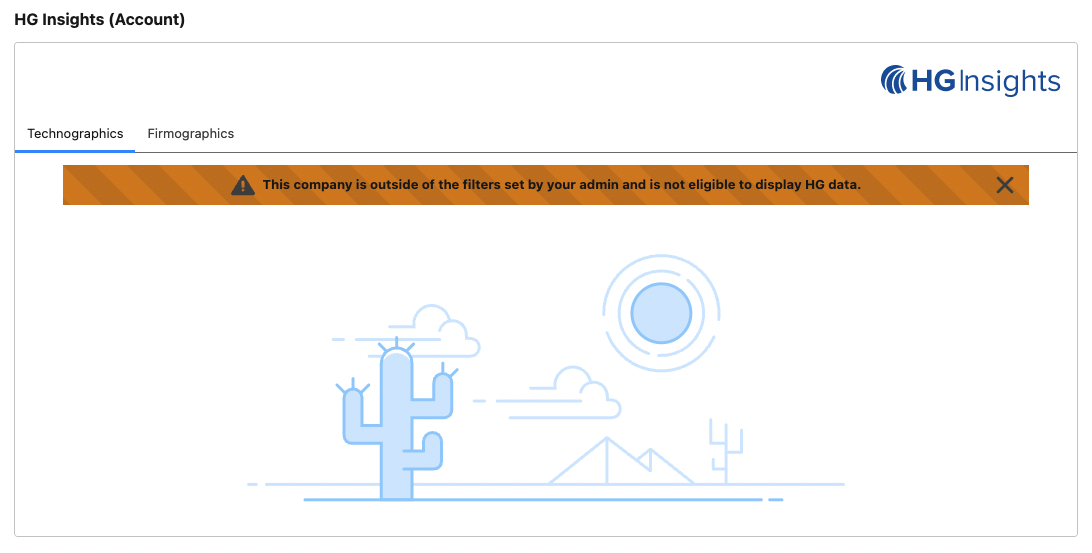
On the Visualforce component in Salesforce, any records not eligible for enrichment will have this banner
In Salesforce, you can review Reports of enrichment eligible vs not enrichment eligible records by including the HG Enrich Status field.