
Tips for Reviewing HG Match Results in a Salesforce Report
In the HG Platform you can see how many records HG tries to enrich (Total), how many were matched (Matched) and how many were not matched (Not Matched)
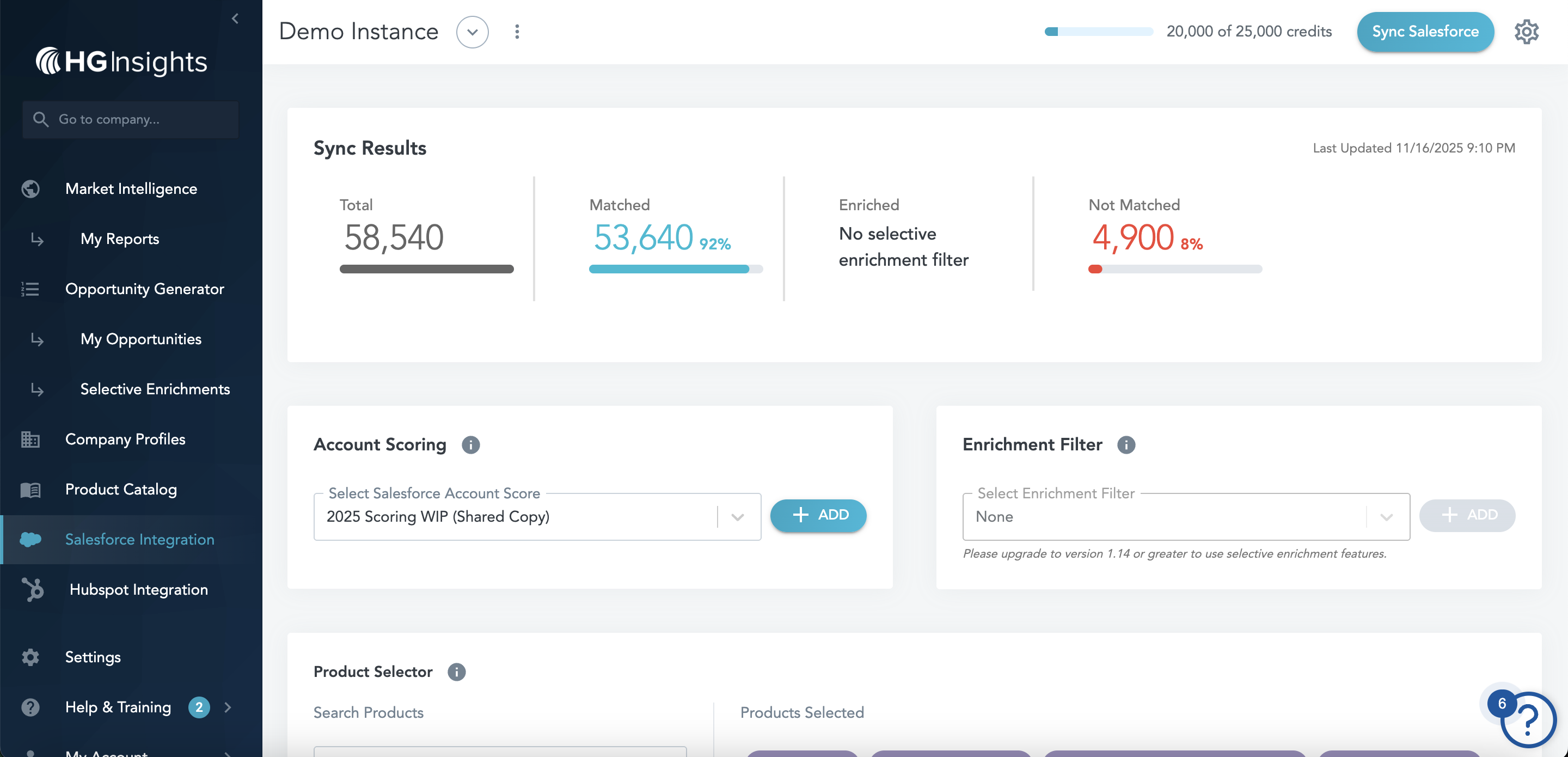
You can see the exact list of records matched and not matched by building a report in your Salesforce.
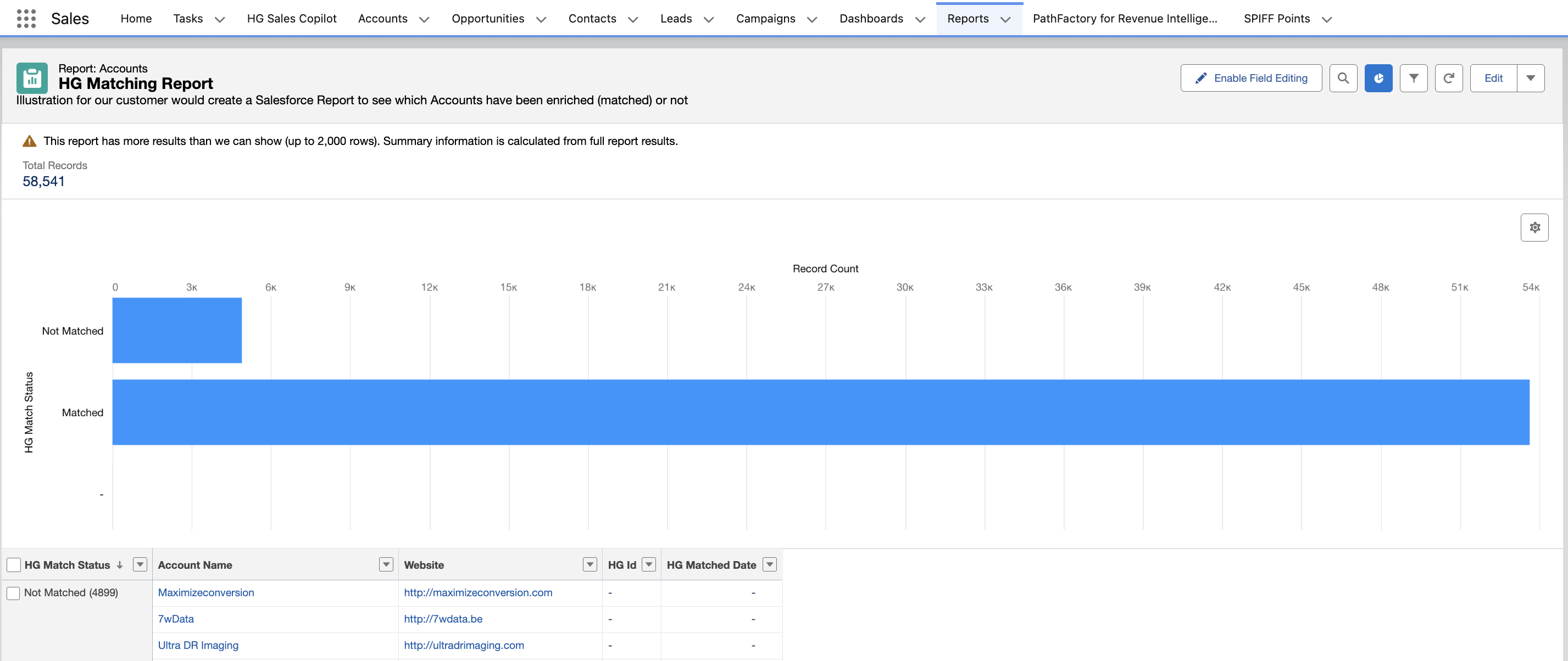
Note: The report can be based on Account or Leads depending on your needs.
How to build a Salesforce report showing accounts matched vs not matched
Log into your Salesforce account
Go to Reports > click New Report
Select Accounts (or Leads if you want to review the leads matched)
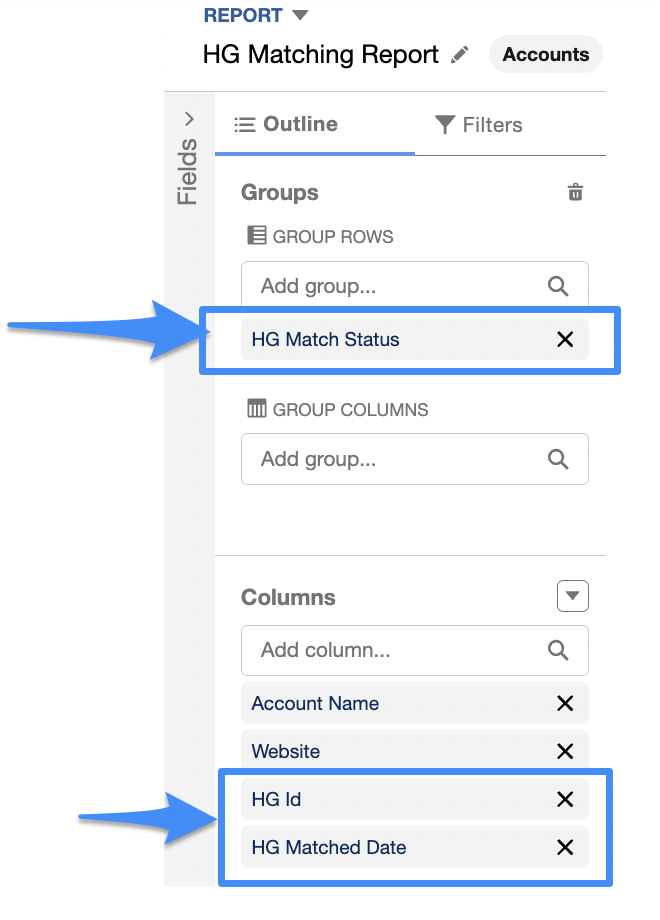
In Groups, search and select "HG Match status"
In Columns, add "HG ID" and "HG Matched Date"
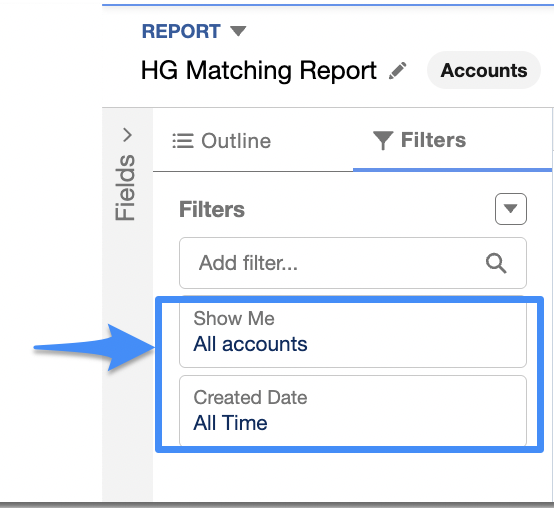
In Filters, select All Accounts and All time
Click Add chart
Click Save & Run, add name HG Matching Report
You'll see the graph with the numbers of accounts per HG Match Status
Matched
Not Matched
- (This means matching has not been attempted on this record)
and below the list of accounts in each HG Match status
References of HG fields
Label | API Field Name | Type |
HG Id | HG_Insights__HG_Id__c | Text(255) |
HG Match Status | HG_Insights__HG_Match_Status__c | Text(100) (External ID) |
HG Matched Date | HG_Insights__HG_Matched_Date__c | Date |