Adding Your Custom Fields to Reports
Last updated: December 6, 2025
The managed package contains a number of reports that allowing you to quickly view HG data in your organization without much lift.
While editing these reports to add additional fields, you may find that your custom fields on the Account & Lead objects are unavailable. This is because the package is primarily aware of standard fields, as it is more generic.
We can solve this by adding a new Report Type in settings.
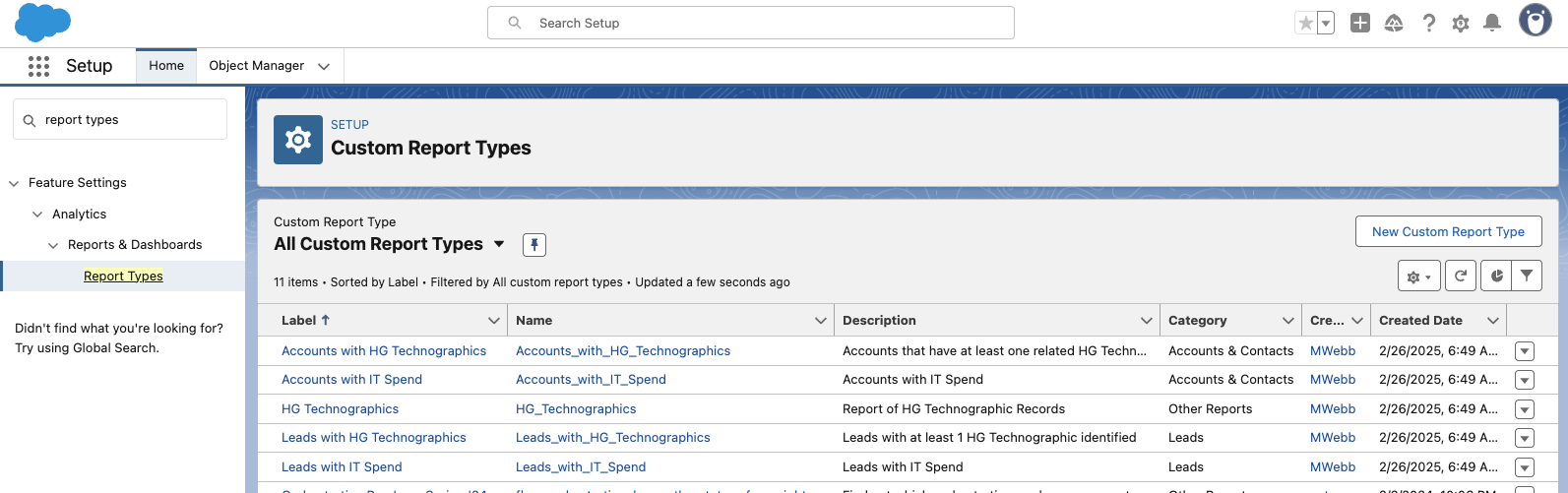
- Navigate to Settings and search for Report Type
- Select New Custom Report Type
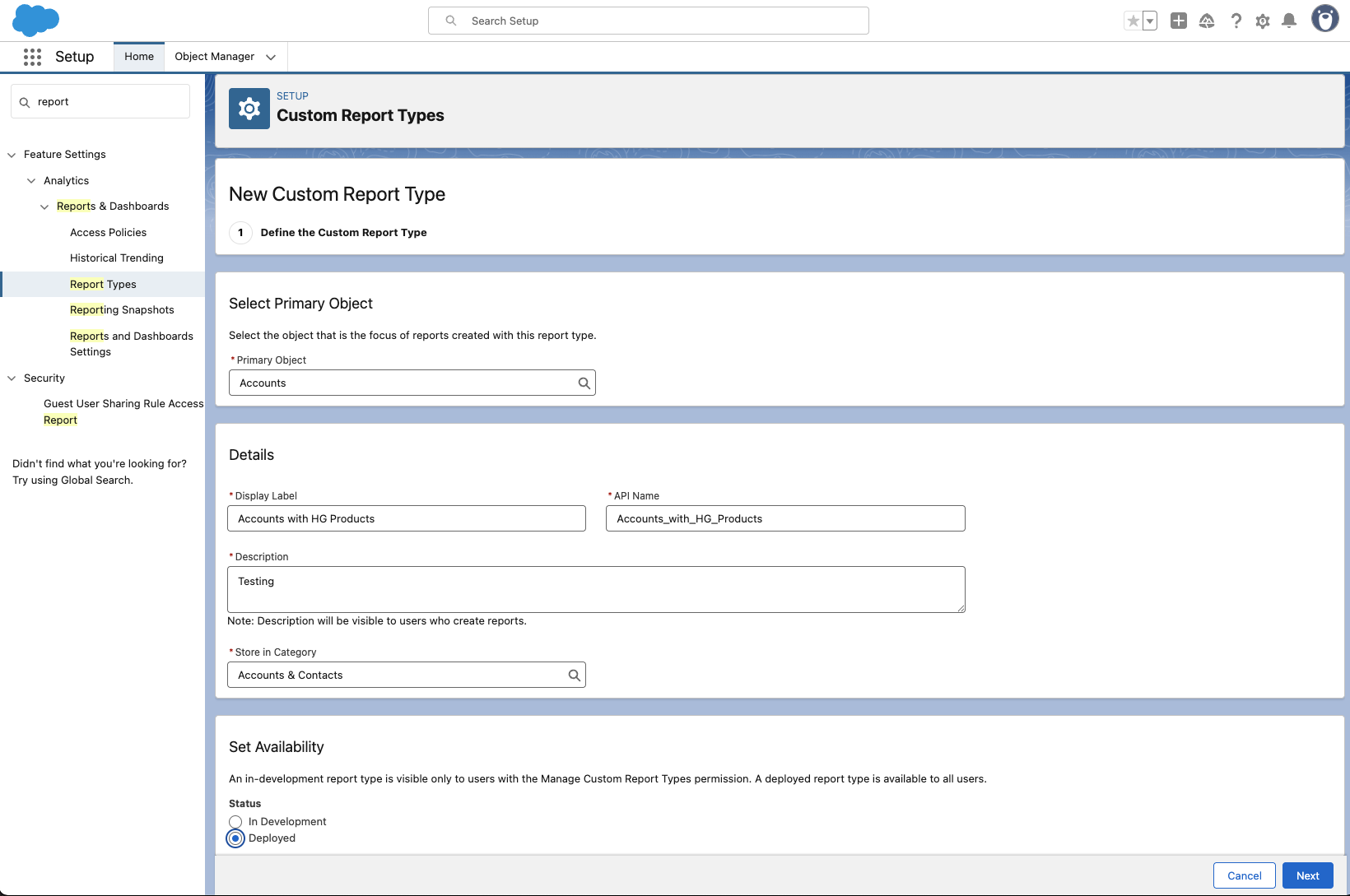
3. Fill in the details for the custom report, your primary object should be Lead or Account. When finished select Next
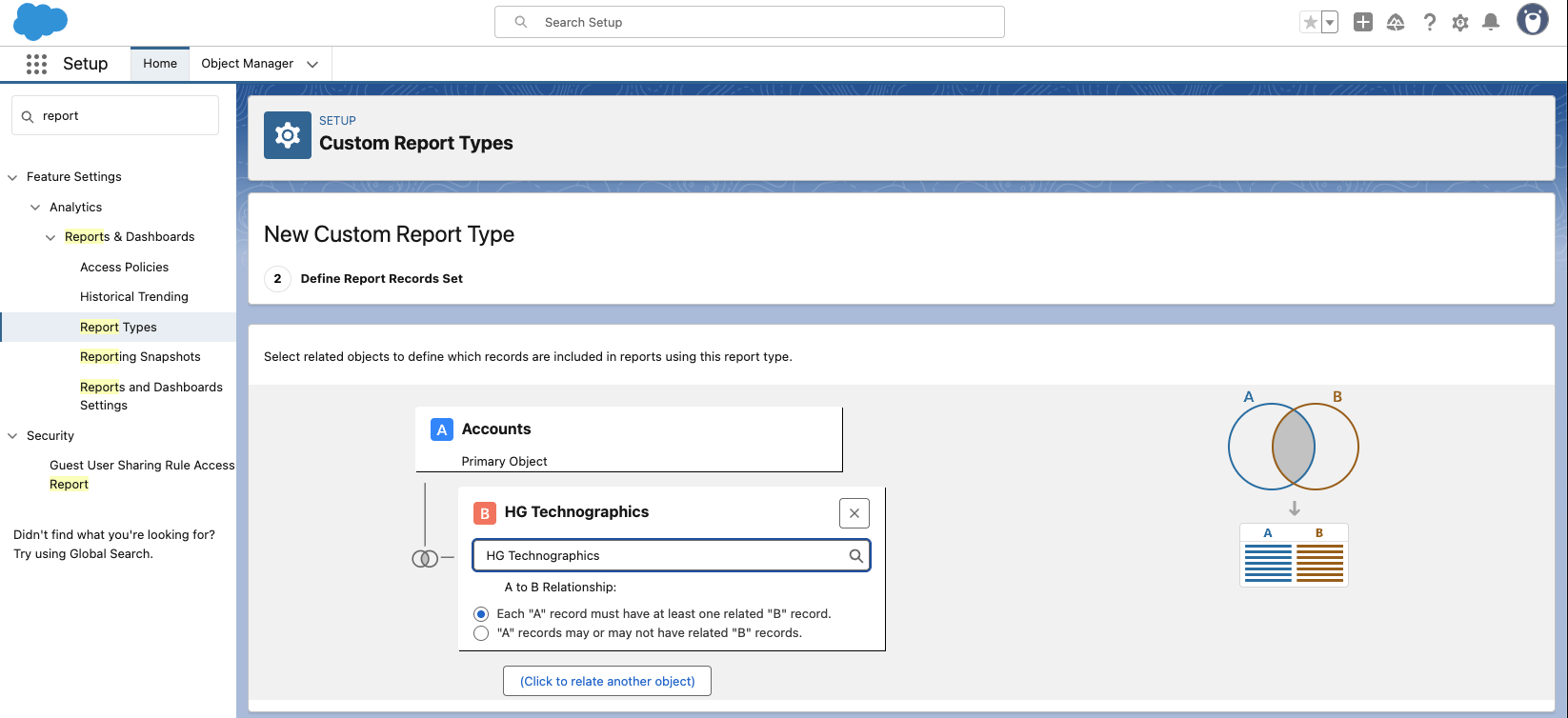
4. Connect the secondary object - this should be one of the HG object. In this case I'm using HG Technographics.
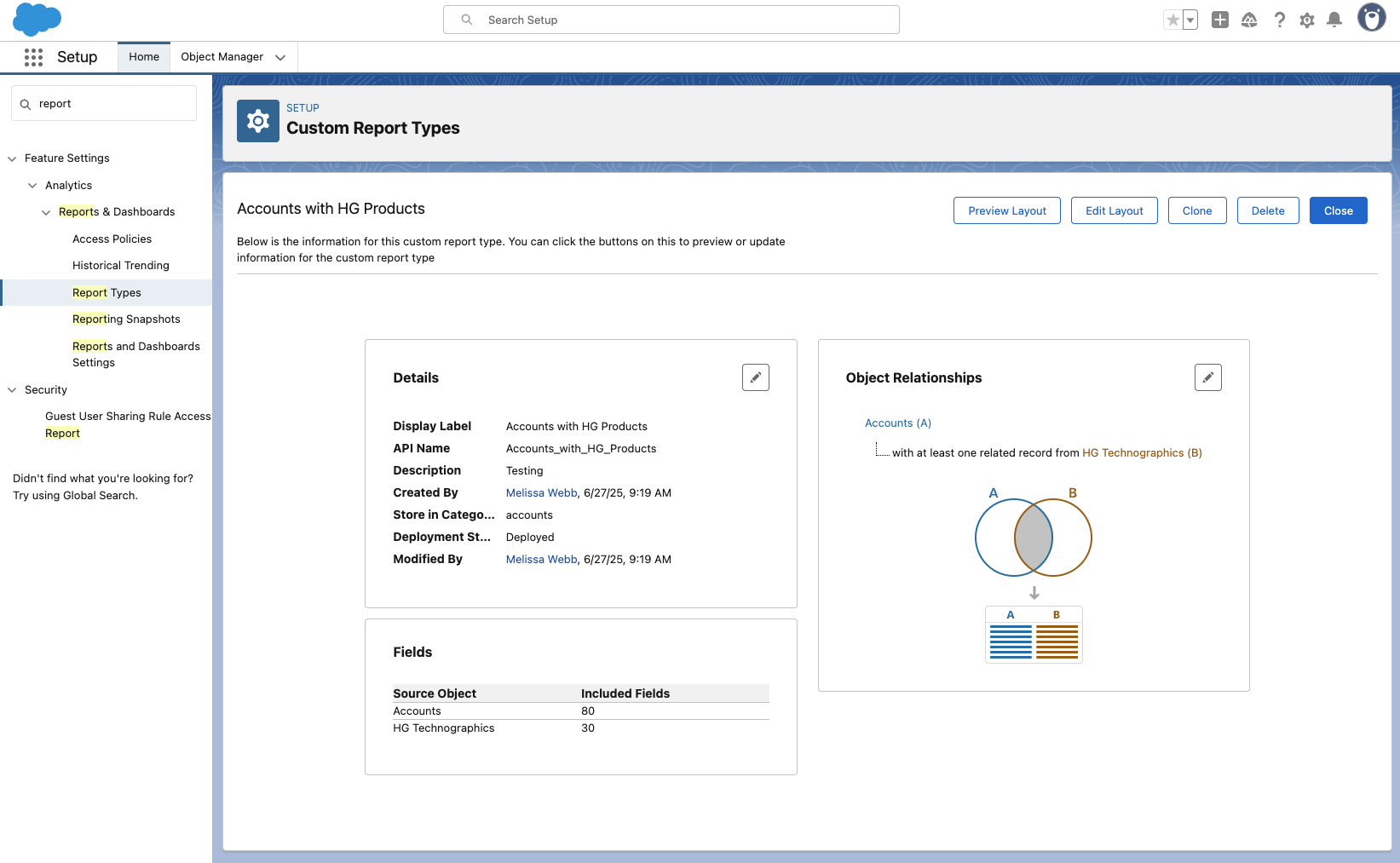
5. After you save you'll land on this page. Click Edit Layout.
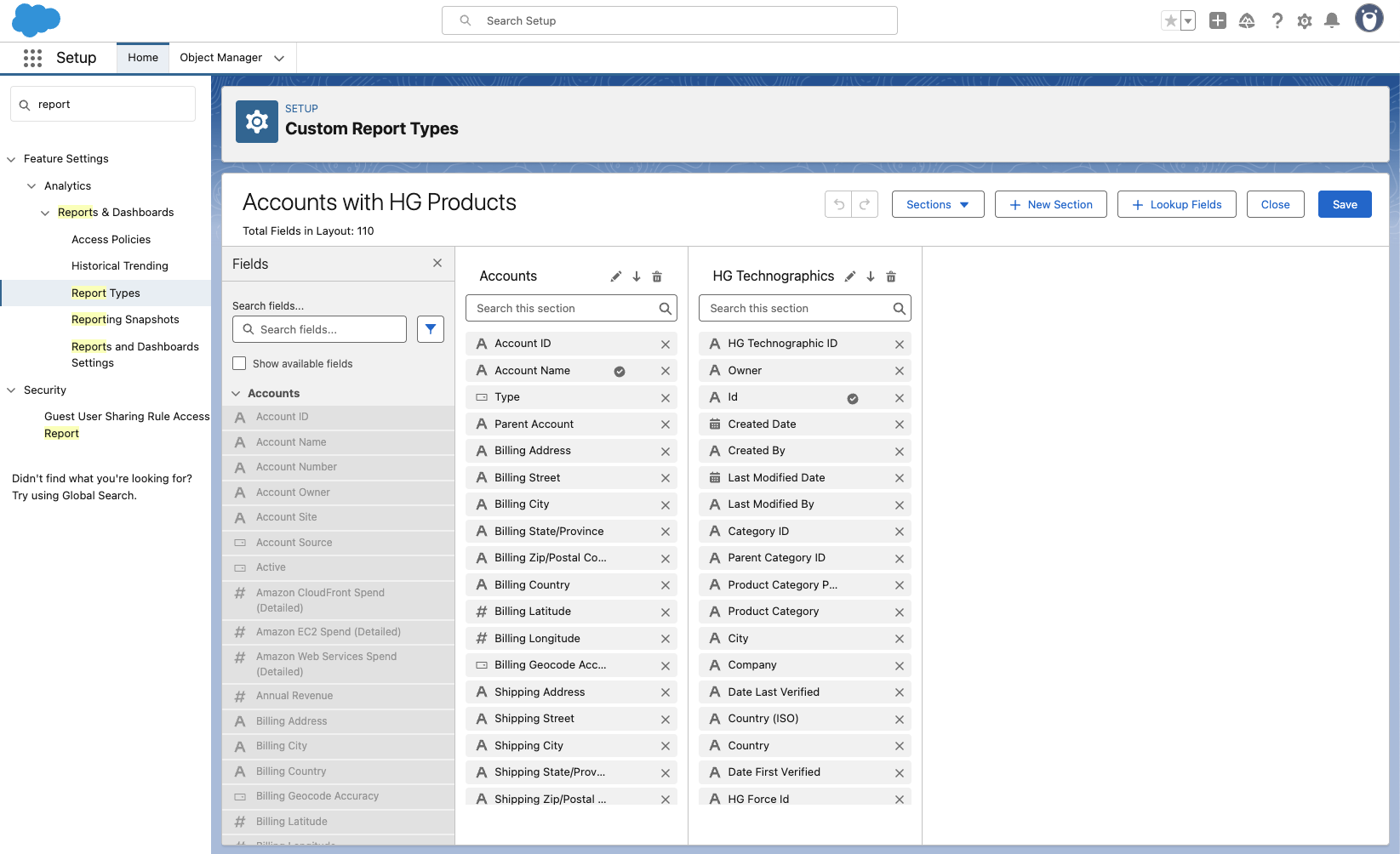
6. Ensure that your custom fields are available - they'll likely all already be populated in your Account/Lead column. When done, click Save
You can now create a new report using this Report Type you added!